
Explore the latest free tools from the MQL5 community. Here's a new indicator, expert advisor, or script for MetaTrader.
 A local client to client trade copier with custom dashboard in C# and transport pipe in golang
How to Run the MT5 Trade Copier ( Archived dll based version )
Step 1: Start the ZMQ Routing Bridge
- Open Windows File Explorer and navigate to:
- Double-click and run T5Copier_Bridge.exe .
- A terminal window will open indicating that the bridge is listening on:
- Port
- Port
- Port
Step 2: Open the C# WPF Dashboard
- Navigate to:
- Double-click and run CSharpDashboard.exe .
- In the dropdown at the top, select MT5 Copier (Port 5569) .
- Click Connect Dashboard . The status indicator will change to
Step 3: Set up the MT5 Master Terminal (Sender)
- Open the MT5 terminal that you want to copy tradesfrom.
- Make sure the Master EA is installed: go to the Navigator panel, right-clickExperts, and clickRefresh. You should see
- Dragany single chart.
- In the properties window:
- Go to theCommon Allow DLL imports Allow Algo Trading .
- Go to theInputs
- ClickOK. Ensure theAlgo Trading
Step 4: Set up MT5 Slave Terminals (Receivers)
- Open one or more MT5 terminals that you want to copy tradesto.
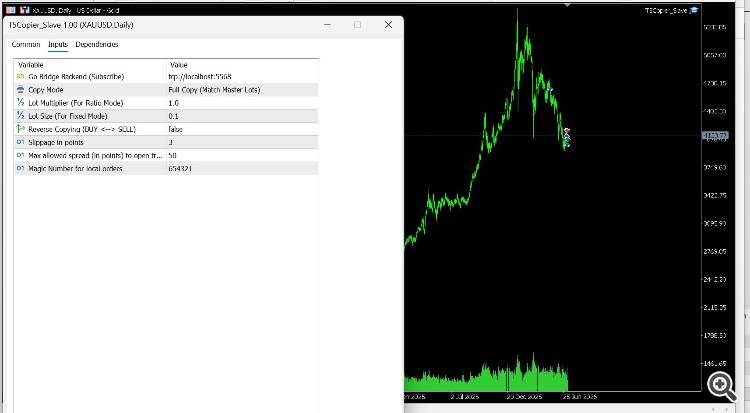
- Drag the Slave EA ( T5Copier_Slave ) onto a chart.
- In the properties window:
- Go to theCommon Allow DLL imports Allow Algo Trading .
- Go to theInputs
- InpLotMode : Select
- InpLotMultiplier : Set your multiplier (e.g.,
- InpReverseCopy : Set to
- ClickOK. EnsureAlgo Trading
++++++++++++++++++++++++++++++++++++++++++++++++++++++++++++++++++++++++++++++++++++++++++
ere is the comprehensive step-by-step user guide for running the new trade copier versions.
Trade Renko charts automatically using the advanced Renko Expert Advisors. Clean trends, better entries. Discover them here.
Part 1: Running the MT5 DLL-Free Copier (Codebase Compliant)
This version uses MetaTrader 5'snative TCP sockets, meaning it is100% DLL-free
Step 1: Start the Go TCP Bridge
- Navigate to:
- Double-click and run T5Copier_Bridge.exe .
- A console window will open indicating that the Go Bridge is listening on TCP port 5580 .
Step 2: Launch the C# WPF Dashboard
- Navigate to:
- Double-click and run CSharpDashboard.exe .
- In the dropdown, select MT5 Copier (Port 5580) .
- Click Connect Dashboard . The status will change to
Step 3: Attach the MT5 Master EA (Sender)
- Open your Master MT5 terminal.
- In the Navigator, drag T5Copier_Master
- In the properties window:
- Common tab: Ensure Allow Algo Trading (Note: DLL imports are NOT required!)
- Inputs tab: Verify the server address is
- ClickOK. EnableAlgo Trading
Step 4: Attach the MT5 Slave EA (Receiver)
- Open your Slave MT5 terminal.
- Drag T5Copier_Slave
- In the properties window:
- Common tab: Check Allow Algo Trading .(DLL imports are NOT required!)
- Inputs tab: Configure your preferred parameters (e.g.
- ClickOK. EnableAlgo Trading
Part 2: Running the MT4 Copier (ZeroMQ Powered)
This version uses the high-performanceZeroMQ
Step 1: Start the Go ZMQ Bridge
- Navigate to:
- Double-click and run T4Copier_Bridge.exe .
- It will listen on Ports:
- 5557
- 5558
- 5559
Step 2: Launch the C# WPF Dashboard
- Navigate to:
- Double-click and run CSharpDashboard.exe .
- In the dropdown, select MT4 Copier (Port 5559) .
- Click Connect Dashboard .
Step 3: Attach the MT4 Master EA (Sender)
- Open your Master MT4 terminal.
- Drag T4Copier_Master
- In the properties window:
- Common tab: Check Allow DLL imports .(Required for ZeroMQ DLLs!)
- Inputs tab: Keep the default
- ClickOK.
Step 4: Attach the MT4 Slave EA (Receiver)
- Open your Slave MT4 terminal.
- Drag T4Copier_Slave
- In the properties window:
- Common tab: Check Allow DLL imports Allow live trading .
- Inputs tab: Set inputs (e.g.,
- ClickOK.
Step 5: Verification (Common to Both)
- Place a trade on the Master terminal.
- Watch theC# Dashboard: The trade details (ticket, symbol, type, lot size) will immediately pop up in theActive Copied Trades
- Confirm that the trade was replicated instantly on the Slave terminal(s) with your configured lot/reverse rules.
- Close the trade on the Master terminal; the Slave terminal(s) will close it instantly.
Build better strategies with RobotFX professional tools – check them out.
74807


