
New free code from MQL5: indicators, EAs, and scripts for traders.
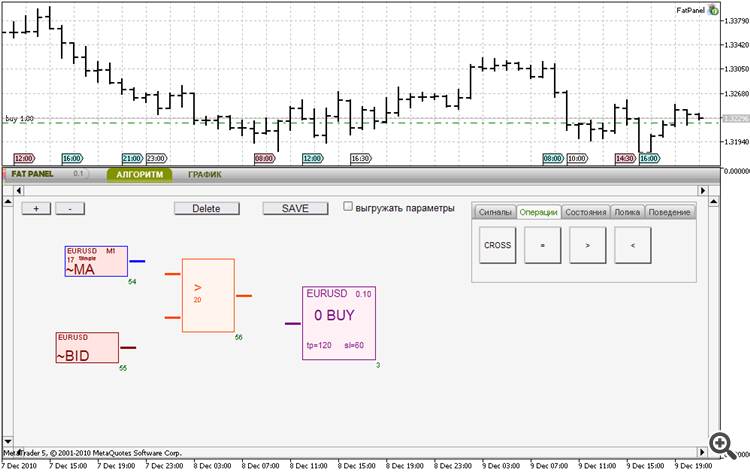
Now it's time to connect the blocks.
If you click the block, you will see the blue rectange, it means that block is selected. Now you can move it at any place on the workspace. If you drag the block on the other block, it will try to connect them automatically. Let's connect the signal blocks with ">" operation block, and operation block with order block.
Reduce lag and improve accuracy with the NonLagMA Expert Advisor for MT4/MT5. Discover it.
All logical blocks has inputs and outputs, the incorrect connection of blocks is impossible. To delete block, you need to select it and click on the "Delete" button. To configure block properties, click it when selected (or double click the unselected logical block).
Let's set the ">" block parameters.
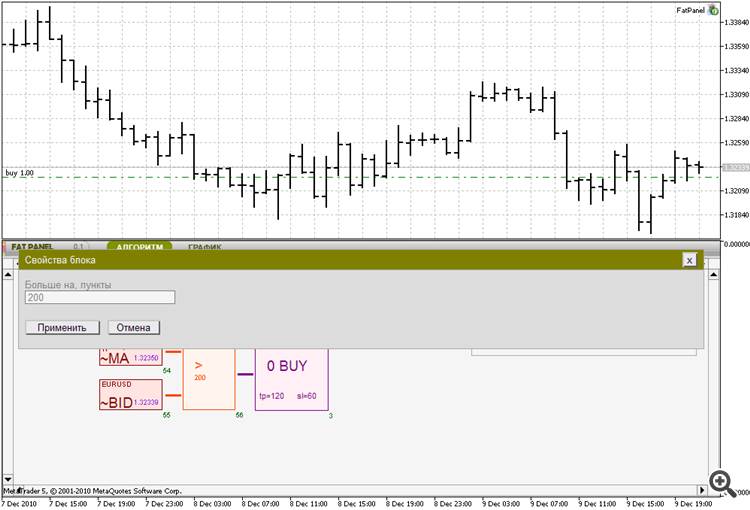
Let's set tp=120 and sl=60 for "Buy" block. After that let's enable the work of the scheme. If you enable the "AutoTrading", the Expert Advisor will start trading.
Attention! It isn't recommended to test the work of the Expert Advisor on real accounts!
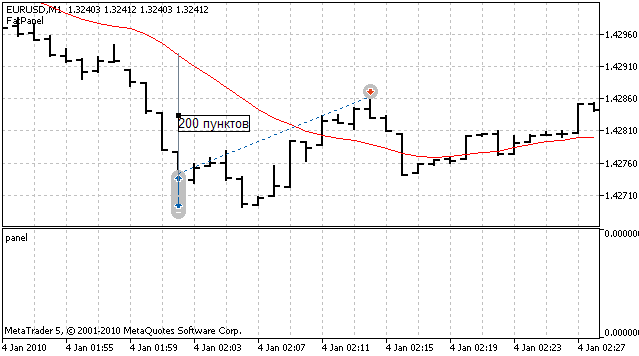
In our case, the Expert Advisor will place orders if the distance between moving average and Bid price is higher, than 200 points.
History backtesting:
To test the strategy on historical data, you need to save the scheme by click the "SAVE" button.
Next, select "Fatpanel/FatPanel.ex5" in Strategy Tester of the client terminal. The symbol and period aren't important, the Expert Advisor will trade on the strategy symbols, specified in order blocks or a timer.
Now it's time to look at the strategy results. If we specify 300 instead on 200 in our operations block of the scheme, the result looks as follows (2010):

2. "Chart" tab
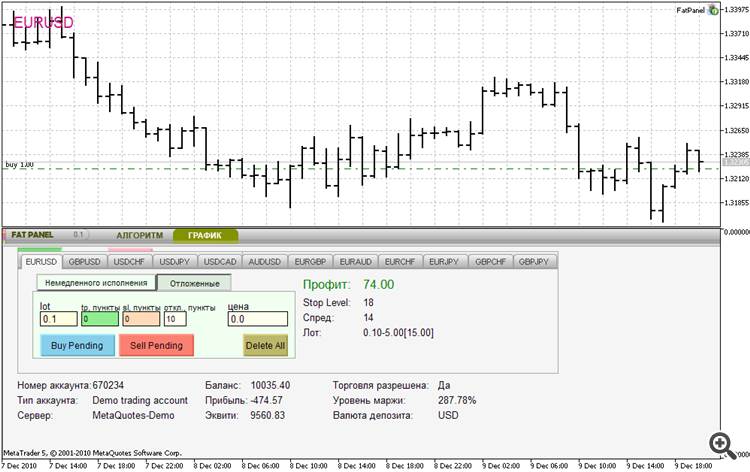
The Chart tab provides the information on symbols and opened positions and allows the manual trading.
- the symbols located in tabs
- easy position management
- close position (if position exceeds the maximal trade volume, the position will be closed using several trade requests)
- the color of the symbol tab is dependent on current profit of the opened position.
- it checks the parameters and show warnings messages.
- easy placement of pendng orders
Level up your trading with professional RobotFX expert advisors and indicators. Visit www.robotfx.org for proven MT4/MT5 tools.
218


